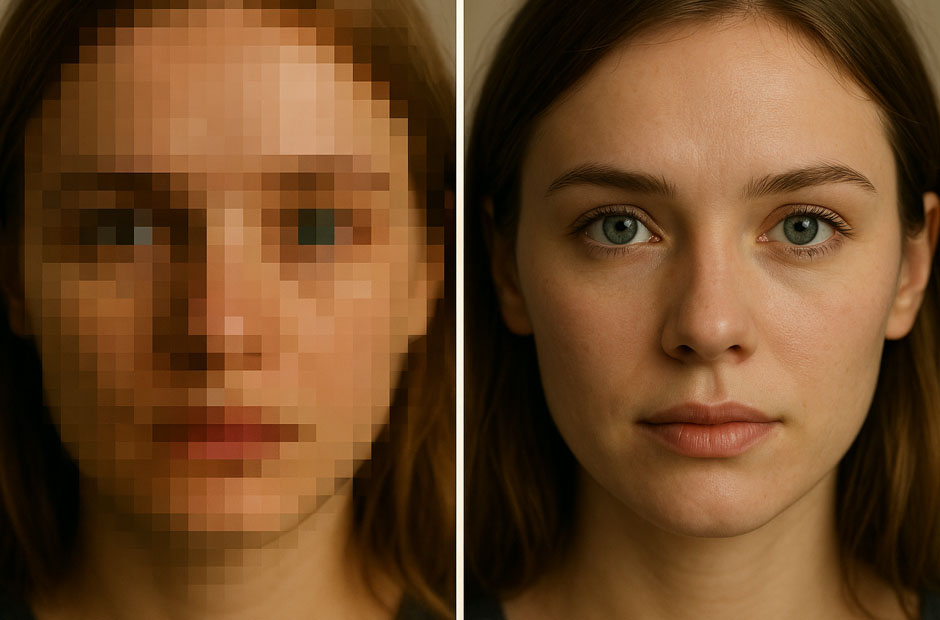
Pixelated images can ruin your favourite photos, social media posts, business graphics, or old memories. If your photos appear blurry, blocky, or filled with visible square dots after resizing, compressing, or downloading, it’s important to immediately implement appropriate photo repair workarounds. Fortunately, several repair methods are available online that you can try to repair pixelated images.
This guide explains what causes image pixelation, how to fix it on different devices, and the best methods to restore image clarity without losing quality.
What Are Pixelated Images?
Digital images are made up of tons of square boxes called pixels. When an image lacks enough pixel data or is enlarged too much, the pixels stretch and become noticeable. A pixelated image appears blurry or blocky because the individual pixels become visible.
Before you proceed with any photo repair method, it’s important to find the exact signs and reasons for your photo damage. Some common signs of pixelation include:
- Blocky edges
- Blurry details
- Jagged lines
- Grainy appearance
- Poor text clarity
- Distorted facial features
Why Do Your Photos Get Pixelated? [Common Reasons]
Identifying the exact cause of your image’s pixelation can help you determine an adequate photo repair workaround. Some main reasons for pixelation include:
Enlarging Small Images
One of the main reasons for your pixelated photos is resizing a low-resolution image to a larger size. When you stretch any small image beyond its original dimensions, the software invents missing details, leading to blocky visuals.
Excessive Compression
JPEG compression reduces file size by removing image data. Heavy compression creates artefacts, blurry edges, and pixelation.
Cropping and Zooming
When you crop your photo, its pixels might get removed from the original image. Enlarging the cropped area later can reduce image quality and cause pixelation.
Poor Export Settings
Saving images with low-quality export settings can reduce sharpness and clarity. Wrong file formats may also contribute to pixelation.
Social Media Compression
Platforms like Instagram, Facebook, and WhatsApp automatically compress uploaded photos to reduce storage and bandwidth usage.
How do I Fix Pixelated Images? [Quick Methods]
Irrespective of the above reasons for your pixelated photos, there are several photo repair workarounds available that you can try to fix the pixelated photos. Just go with the below methods one by one to repair your photos easily:
Method 01: Fix Pixelated Images in Photoshop
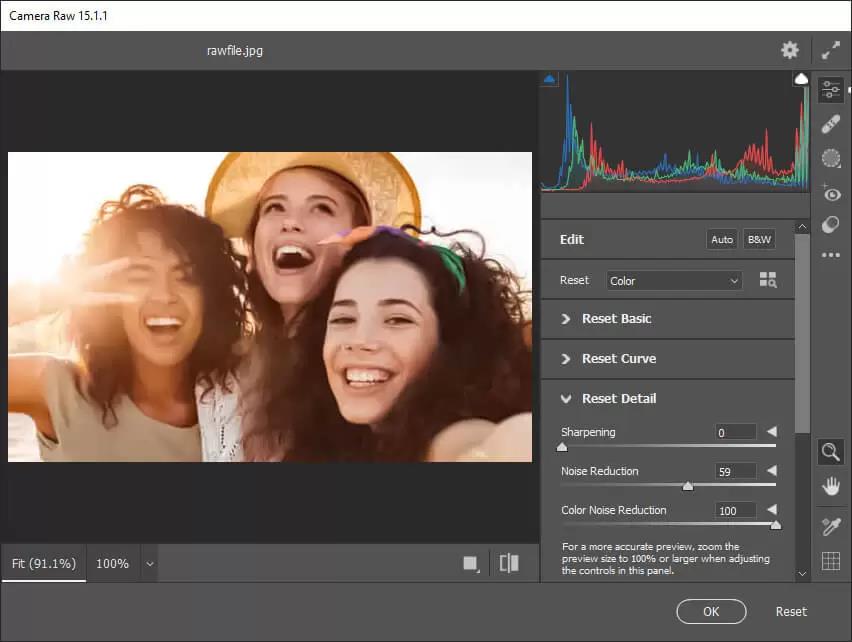
Adobe Photoshop is one of the most trusted platforms that you can use to fix blurry or pixelated photos. It offers built-in features like sharpening, noise reduction, and AI-based image enhancement that you can use to improve your photo quality and restore its details.
Steps to repair pixelated photos using Photoshop:
- Firstly, open your image in Photoshop.
- Go to Filter > Sharpen, then select Smart Sharpen.
- Adjust the Sharpening and Noise Reduction sliders until you achieve the desired results for your image.
- Once done with the changes, go to File > Save to save the changes.
Method 02: Repair Photos Using Paint.NET
Another effective photo repair tool that you can try to reduce pixelation and improve image quality is Paint.net. With features like sharpening, blur adjustment, and contrast enhancement, it offers an easy way to repair mildly pixelated photos. All you have to do is:
- Open your pixelated photo in Photo.NET.
- Go to Effects > Photo > Sharpen to improve image clarity.
- Now, navigate to Adjustments > Brightness/Contrast for better visibility and detail enhancement.
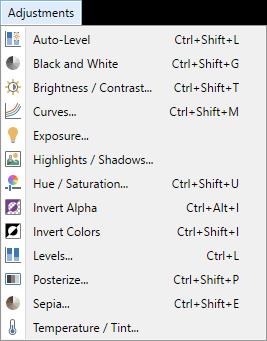
- Apply Effects > Blur > Gaussian Blur slightly to smooth rough pixel edges.
- Save the repaired photo and check if its quality is improved.
Method 03: Fix Pixelated Images Using Online Photo Repair Tools
If the above methods seem complex, you can try free online photo repair like Stellar Repair for Photo Online to fix your pixelated photos easily. This online tool offers a quick and user-friendly way to improve image quality without requiring advanced editing skills. It supports repairing of photos damaged due to several reasons, including pixelation, corruption, blur, grey areas, and other visual distortions.
The Stellar Repair for Photo Online tool uses advanced repair algorithms to fix damaged image structures and improve visual clarity. You can use this software to repair photos of different file formats, including JPEG, JPG, PNG, TIFF, etc., captured from smartphones, DSLRs, drones, and digital cameras. The software is known for its simple and user-friendly interface, which allows you to repair damaged photos in three simple steps.
Steps to Fix Pixelated Images Easily Using Stellar Repair for Photo Online:
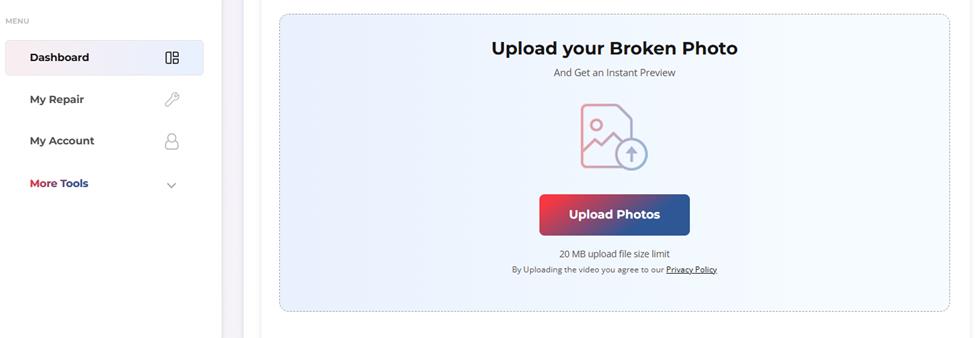
Step 1: Visit the official Stellar Repair for Photo Online page and click Upload Photos to add the pixelated photos that you need to repair.
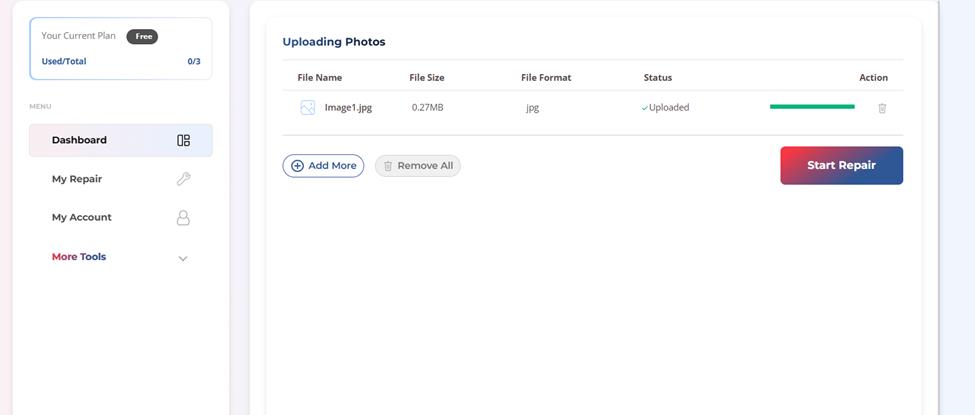
Step 2: After uploading, click Start Repair to initiate the repair process. Wait till the software scans the image and repairs damaged image structures.
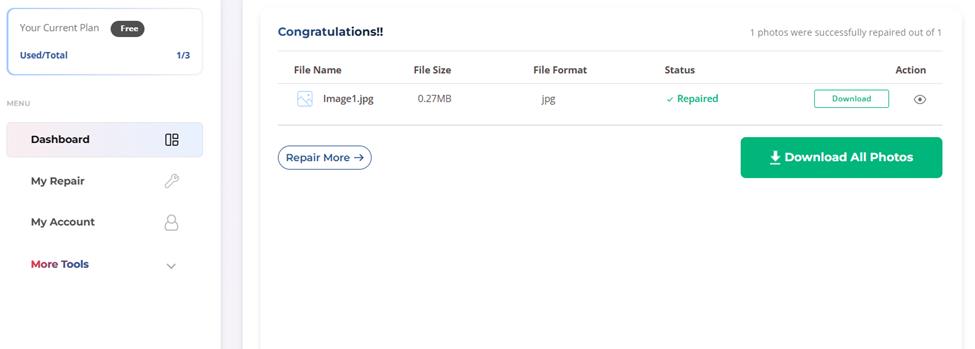
Step 3: Once the repair completes, preview the restored image to check improvements in clarity and quality. Click Download All Photos to save the repaired photos to your PC.
Common Mistakes While Fixing Pixelated Images
Repairing pixelated photos using the aforementioned photo repair techniques is quite easy, but if followed properly. Here are some common mistakes that users generally make while repairing photos:
- Over-Sharpening: Applying too much sharpening can create unnatural edges, halos, and rough textures, making the repaired image appear unrealistic and overprocessed.
- Excessive AI Processing: Excessive AI enhancement may distort facial features, smooth natural textures excessively, and make photos look artificial or digitally generated.
- Enlarging Tiny Images Too Much: Enlarging extremely small images beyond their original resolution often causes severe quality loss, making full detail recovery nearly impossible.
- Using Low-Quality Online Tools: Some low-quality online photo repair tools compress images aggressively after enhancement, reducing sharpness and affecting overall image quality significantly.
Wrapping Up
Pixelated images are frustrating, but thanks to the aforementioned photo repair methods which can help you repair your photos easily. Whether the issue comes from resizing, compression, poor exports, or old image quality, the above methods can help you repair your pixelated photos easily in 2026. You can use tools like Adobe Photoshop or Paint.NET to repair your photos with minimal effort.
If the photo is severely corrupted, use online photo repair tools like Stellar Repair for Photo Online to fix it. With the right techniques, even blurry and blocky photos can often become sharp, clean, and visually appealing again.
FAQs
What causes images to become pixelated?
Images usually become pixelated due to low resolution, excessive compression, enlarging small images, or repeated editing and saving.
Does increasing image size always cause pixelation?
Yes, enlarging low-resolution images beyond their original dimensions often stretches pixels and reduces image clarity significantly.
Is Photoshop good for repairing pixelated images?
Yes, Adobe Photoshop offers advanced sharpening, noise reduction, and AI upscaling features for improving image quality.
How can I prevent image pixelation in the future?
Use high-resolution photos, avoid excessive compression, save images in proper formats, and avoid enlarging small images excessively.