Bluetooth Headphone Audio Delay on TVs – Causes and Solutions
A quiet movie night can become oddly distracting when a character’s mouth moves before the dialogue arrives. Bluetooth headphones delay can turn a close-up into a mismatch, especially during conversation-heavy shows, live sports, or a movie with fast edits. The cause is usually a chain of small processing steps rather than one faulty setting. The sections below explain where the lag comes from, which TV controls to check, and when a different connection method makes more sense.
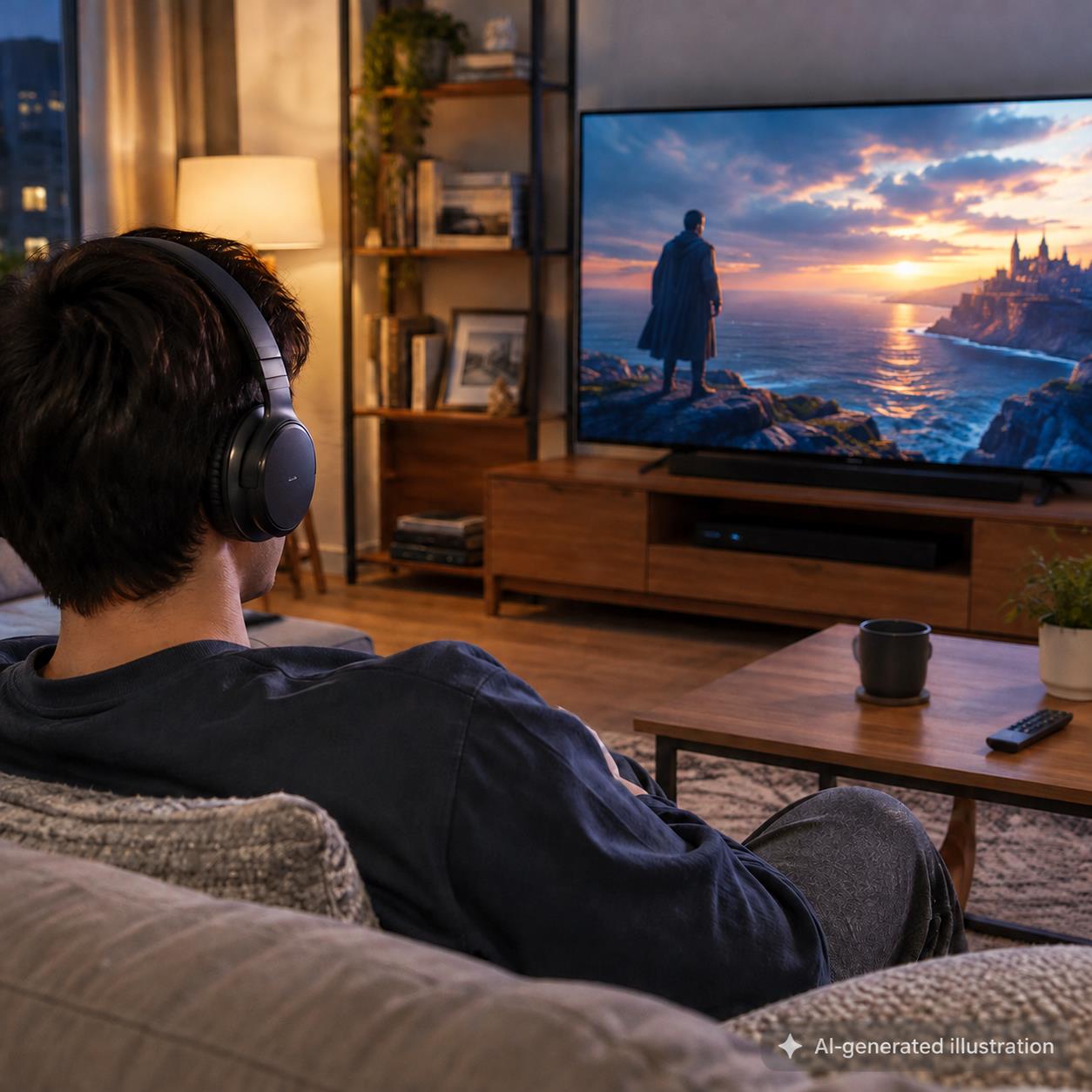
Alt: Person wearing black over-ear Bluetooth headphones while watching TV
Filename: bluetooth-headphones-tv-audio-delay-living-room.png
Why Does Bluetooth Audio Run Behind the Picture?
Bluetooth audio is not sent to headphones as an unprocessed copy of the TV signal. The television encodes the sound, the headphones receive it, and the headphones decode it before it reaches the speaker drivers. A codec is the method used to package and unpack that audio. Each stage needs a small buffer, which is a short reserve of audio that helps prevent dropouts when the wireless signal varies.
The TV may also hold the picture while it applies motion smoothing, noise reduction, frame interpolation, or other video effects. Those settings can make a film look different, yet they also change the timing relationship between sound and image. Audio may be delayed at the source, during Bluetooth transmission, or at both points. A small offset often goes unnoticed with music, but speech gives the eye a much clearer timing reference.
Headphone Bluetooth versions do not determine latency on their own. Codec support on both ends, the TV’s audio pipeline, and any device placed between them have more influence. That is why two sets of wireless headphones can behave differently with the same television, and why a setup that sounds fine in one app can feel late in another.
Which TV Settings Should You Check First?
Check the TV menus before changing hardware. In Sound, Audio Output, Advanced Audio, or Expert Settings, look for AV Sync, Audio Delay, Lip Sync, or a similarly named control. What these controls adjust varies by TV. Some delay the picture to match the sound, while others only add delay to the audio, and some apply only to HDMI eARC or optical output rather than Bluetooth. Check the manual for your TV model to confirm whether the setting works with Bluetooth headphones and whether it shifts the sound or the picture. If it can only add audio delay, it won’t help when the sound already trails the picture. Make small adjustments, then replay the same dialogue scene instead of judging from a new program each time.
Extra sound processing can add its own delay. Virtual surround effects, dialogue enhancement, volume leveling, and automatic audio modes are sensible places to test one at a time. The digital output format setting needs a separate check. On many TVs it applies only to optical and HDMI ARC or eARC outputs, so it usually has no effect on the TV’s built-in Bluetooth. It matters when a Bluetooth transmitter is connected by optical cable, because many transmitters accept only PCM. In that setup, switching the output to PCM is worth testing. It may change the available surround format, so treat it as a test rather than a permanent default, and check your TV’s manual for where the setting applies.
Game Mode can also be worth trying when the TV processes an external player or console, even if the program itself is not a game. The setting typically reduces picture processing. Because the picture reaches the screen sooner, the gap with Bluetooth headphones can shrink or grow, depending on whether the TV also shortens its audio processing. Compare the same dialogue scene with Game Mode on and off, and keep the setting only if the sound lines up better and the picture still looks the way you want.
Which Connection Method Fits Your TV Setup?
It depends on the devices you already own and how sensitive you are to lip-sync differences. Built-in Bluetooth is the simplest route, although some televisions provide limited codec choices or add enough buffering to remain noticeable. A low-latency transmitter connects to the TV’s audio output and creates a separate Bluetooth link. Its benefit depends on compatible codecs at both the transmitter and the headphones.
| Connection Method | When It Makes Sense | What to Watch For |
| Built-in TV Bluetooth | You want the fewest components | Codec options and TV processing vary |
| Low-latency Bluetooth transmitter | Your TV Bluetooth is limited or inconsistent | Both ends need compatible low-latency codecs |
| RF or 2.4 GHz TV headset system | Reliable TV-first listening matters most | It uses a dedicated base and is less portable |
| Wired headphone connection | You want to avoid wireless buffering | Confirm that your TV has a suitable audio output |
For Bluetooth headphones for TV, check the codec listed by the headphones and the codec available from the TV or transmitter. The slowest part of the chain sets the practical result. LDAC is worth treating separately because it is intended for higher-quality wireless audio rather than as a low-latency TV solution.
Which Headphone Features Matter for TV Viewing?
Codec compatibility comes first for wireless viewing, but a backup connection can be just as useful. The soundcore Space 2 includes an AUX input, so it can provide a wired alternative when a TV’s Bluetooth connection is unreliable or lacks a suitable low-latency path. Its Bluetooth 6.1 support and multipoint connection are separate conveniences. Multipoint can reduce re-pairing when switching between a TV setup and a phone. For TV use, the codec list matters more. The Space 2 supports SBC, AAC, and LDAC, and none of these is a low-latency codec, so pairing it with a low-latency transmitter will do little for lip sync. The AUX cable is the more reliable way to connect it to a TV.
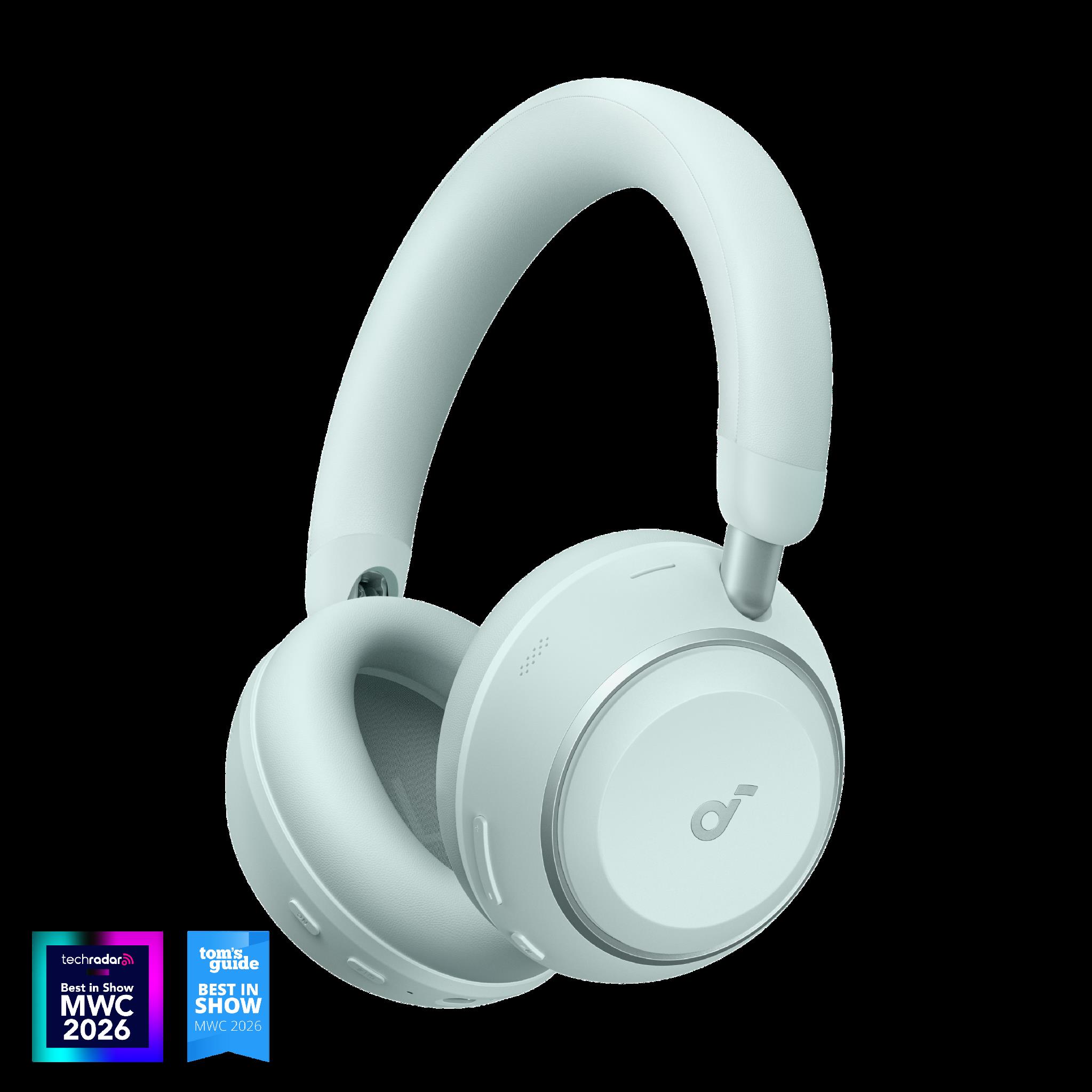
Alt: soundcore Space 2 over-ear headphones
Filename: soundcore-space-2-tv-headphones-product.jpg
Comfort won’t correct timing, but it decides whether a working setup stays pleasant through a long film or a late game. For an evening of viewing, the Space 2 is rated for up to 50 hours with ANC on and up to 70 hours with ANC off. A five-minute charge is rated for four hours of playtime at 50% volume with ANC off, measured after a full drain using a 5V/1A charger and the included cable, which can help after an unplanned low-battery warning. The headphones weigh 264 g, a detail that matters when they remain on for several episodes, and over-ear headphones also need enough room around the ear and steady clamping pressure.
Its Adaptive ANC 3.0 can reduce steady background noise in the room, such as an air conditioner or a nearby appliance, which may make dialogue easier to follow at a moderate volume. The best noise canceling headphones still require a compatible audio path for lip sync, so noise control and timing remain separate parts of the viewing experience. These features address comfort and flexibility around a TV. The AUX connection is the feature that bypasses Bluetooth delay.
How Can You Troubleshoot Bluetooth Headphones Delay?
Work through the checks in order so that one change does not hide the result of another.
- Replay one dialogue-heavy scene in a second app or source. If the delay disappears, the first source is the stronger suspect.
- Forget the headphone pairing on the TV, then pair again with the headphones nearby. A new connection can clear an unstable link.
- Disconnect other Bluetooth devices that are actively paired to the headphones. This is especially relevant when multipoint is enabled.
- Turn off extra TV audio effects. If a transmitter is connected by optical or HDMI ARC, test PCM output as well, then restore the preferred format after the comparison.
- Check for available firmware updates for the TV, headphones, and transmitter, if one is in use.
- Try a wired connection or a dedicated RF or 2.4 GHz TV headset system if Bluetooth remains late after settings and pairing checks.
Conclusion
Bluetooth headphone audio delay on a TV usually comes from encoding, buffering, and television processing working together. Begin with AV sync and audio settings, then compare another source. When the built-in Bluetooth route remains late, a compatible transmitter, a dedicated TV headset system, or an AUX connection gives you a clearer next move. Choose the path that matches the television you have and the kind of viewing you do most often.
Frequently Asked Questions
Why Are My Bluetooth Headphones Behind the TV Picture?
Bluetooth transmission adds encoding, buffering, and decoding time. The TV may add further delay while processing video or audio. The visible result depends on the combined timing of those steps, which is why the same headphones can behave differently with different televisions or apps.
Can an AV Sync Setting Fix Bluetooth Audio Delay?
Sometimes. An AV sync setting helps only when it can delay the picture and applies to the Bluetooth output. A control that only adds audio delay won’t fix sound that already trails the picture. It cannot always compensate for a variable wireless connection, and it may not help if a particular streaming app is sending delayed audio.
Does a Newer Bluetooth Version Eliminate TV Audio Delay?
No. Bluetooth version numbers describe a broader set of capabilities, while TV lip sync depends on codec support, buffering, device processing, and the connection path. Check the codecs supported by the TV or transmitter as well as the headphones.
Can a Bluetooth Transmitter Fix TV Lip-Sync Delay?
It can, but only when the transmitter and the headphones support the same low-latency codec. A transmitter connects to the TV’s optical, 3.5 mm, or RCA audio output and sends sound over its own Bluetooth link, which bypasses a TV’s limited built-in Bluetooth. If the headphones fall back to a standard codec, the delay may barely change. Before buying one, check which audio outputs your TV has and which codecs your headphones list.
Is a Wired Connection Better for Watching TV?
A wired connection avoids Bluetooth buffering and is often the most direct option when the television provides a compatible headphone or audio output. Cable length and seating distance still matter, and some televisions may need an adapter or a different output setting.